 All posts
Lookup iPad by Serial Number: Coverage, Ownership, and Insurance Records
Learn how to look up an iPad by serial number to check AppleCare coverage, verify model details for insurance, and find lost serials for your home inventory.
Corey Everett built Arclyst from a background in Library and Information Science, with the goal of bringing structured information management into everyday home life.
Gemini-assisted drafts are reviewed by Corey Everett before publication.
Publisher: EverCreate Studio
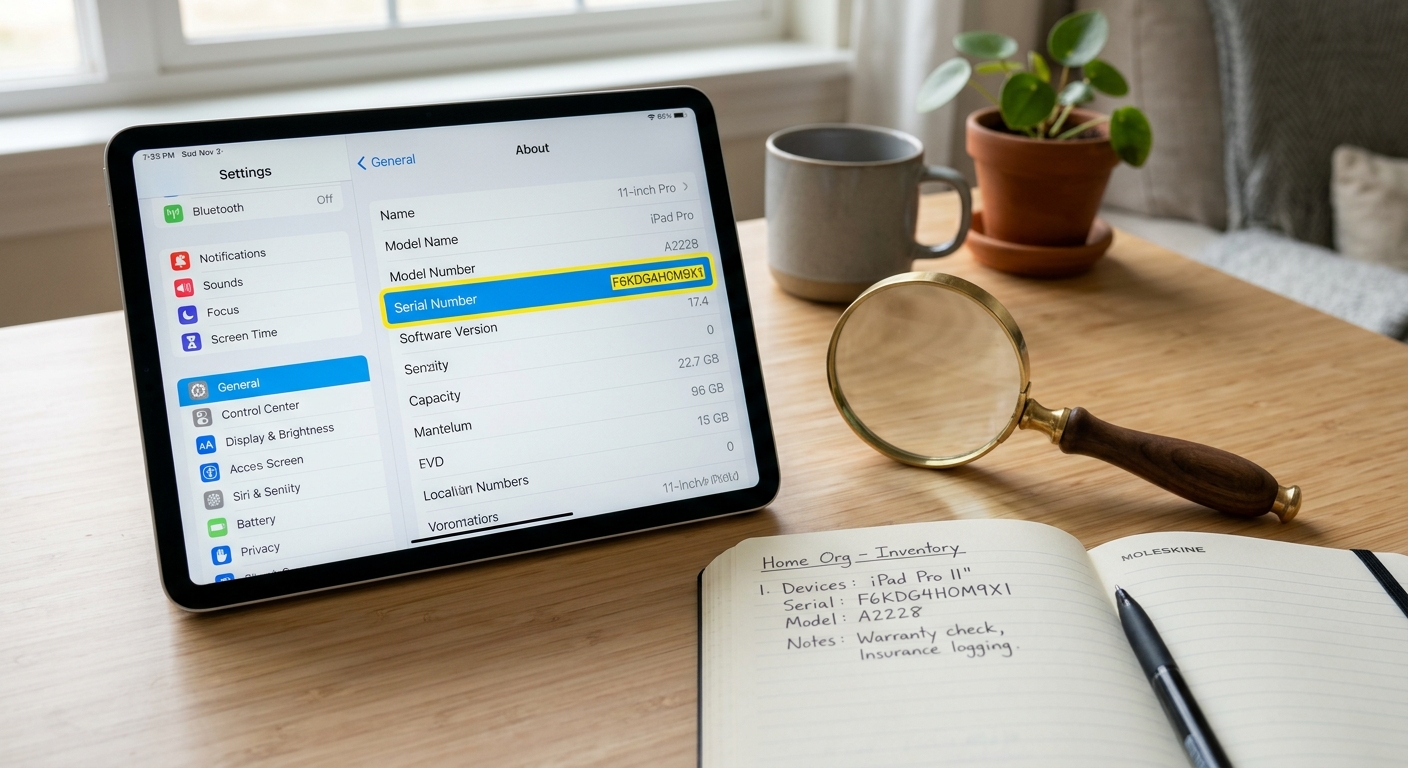
You can look up an iPad by serial number using Apple's official coverage check at checkcoverage.apple.com, which returns the specific model, warranty status, and AppleCare eligibility. The serial number itself can be found on the device, the original box, in Finder or iTunes, or through your Apple account if the iPad will not turn on or is already missing.
Key takeaways
- Apple's free coverage check at checkcoverage.apple.com returns an iPad's exact model, estimated purchase date, warranty status, and AppleCare eligibility based on the serial number.
- You can recover an iPad's serial number without the physical device by checking your Apple ID device list, a Finder or iTunes backup, the original box, or a retail receipt.
- A serial number lookup cannot reveal whether an iPad is stolen or Activation Locked; buyers of used devices must verify in person that the iPad is signed out of iCloud and erased.
- A complete home inventory record pairs the serial number with the model identifier, purchase date, photos of the device and receipt, and AppleCare status.
- If a lookup returns no results, check for common transcription errors like the number 0 versus the letter O, and note that Apple Service replacement units often carry a new serial number.
How do I look up an iPad by serial number on Apple's official site?
Apple operates a centralized, free coverage check portal at checkcoverage.apple.com. By entering your serial number and completing a brief human verification prompt, the page queries Apple's database and returns the specific model, the estimated purchase date, and whether the iPad is currently covered by a limited warranty or an extended AppleCare plan. The entire lookup process takes under a minute and works for any iPad, whether you purchased it new, bought it used, or inherited it.
What you need before you start
You need the serial number itself. If you have the working device in your hands, you can pull this from the Settings app under General, then About. If the iPad will not turn on or is already missing, you will need to rely on the original box barcode or your Apple account records as a fallback.
Before you run the check, prepare to save the lookup results as a screenshot or PDF. Proof of ownership for an insurance claim often starts with tying a specific serial number to an exact model. Having this documentation saved independently of the device ensures you have the necessary details if the iPad is ever stolen or destroyed.
What the lookup returns in under a minute
The results page confirms the model identifier and coverage status, which are exactly the details a claims adjuster typically asks for during a loss assessment. For example, knowing you have an "iPad Pro 12.9-inch (5th generation)" rather than just an "iPad Pro" significantly impacts the valuation of your claim.
Record the serial, model, and purchase date in a searchable home inventory so the record survives a potential loss. If the serial is already lost, the recovery steps in our guide to missing serial numbers for insurance payouts cover what to try next before finalizing your claim paperwork.
Where do I find my iPad's serial number if I don't have the device?
Losing an iPad or having one stolen does not mean you have lost the serial number. Apple integrates device tracking across its ecosystem, giving you multiple avenues to retrieve this critical piece of information.
On the iPad itself (Settings and engraved text)
If the iPad still powers on and you simply want to document it, open Settings, tap General, then tap About. You can copy the serial number directly from the screen.
Additionally, older iPads feature the serial number engraved on the back of the aluminum casing near the bottom. This etching is notoriously faint and easy to miss in low light. To capture it for your records, wipe the back clean, angle the device so a light source reflects slightly off the metal, and photograph the engraving. File that image with your other proof of ownership documents.
From your Apple account or a synced computer
If the device is gone, your first stop should be your Apple ID account. Sign in at appleid.apple.com and navigate to the Devices section. Any iPad tied to your Apple ID will appear there, complete with its serial number and model details.
Alternatively, if you have ever synced or backed up the iPad to a Mac, Finder retains a record of the device. When you connect any iOS device, Finder shows the serial under the device summary, and local backups keep that serial number on file even after the iPad is gone. A Windows PC running iTunes functions the same way, storing device identifiers in the backup preferences menu.
From the box, receipt, or carrier paperwork
Physical paperwork is highly reliable if you keep your packaging. The original box features a barcode sticker on the bottom or side, with the serial number printed clearly alongside the IMEI (for cellular models) and the Apple part number. Receipts from Apple, Best Buy, or carrier invoices typically list the serial number as well. Cellular iPads will also show up on your monthly carrier billing statements with their identifying numbers.
| Location | Works when device is lost? | Works when device is dead? |
|---|---|---|
| Settings > General > About | No | No |
| appleid.apple.com device list | Yes | Yes |
| Finder or iTunes backup | Yes | Yes |
| Box, receipt, or carrier invoice | Yes | Yes |
Log whichever source you find first into a searchable catalog so the number survives your next move or spring cleaning. Maintaining a dedicated record of serials and warranties keeps each device's technical details permanently attached to its purchase receipt in one secure place.
How do you find the serial number when the iPad won't turn on?
A dead iPad that refuses to charge or boot up still carries its serial number in up to three physical locations.
First, check the back casing. As mentioned, many models have the number engraved in fine print near the regulatory markings at the bottom.
Second, if you own a Wi-Fi + Cellular model, the serial number and IMEI are often printed directly on the SIM tray. You will need a standard paperclip or SIM ejector tool to pop the tray out of the side of the iPad. The text is incredibly small, so you may need a magnifying glass or your smartphone's macro camera to read the alphanumeric string printed along the tray's thin edge.
If the back engraving is worn away from years of use or the SIM tray is unreadable, you must check the original packaging. Apple prints a detailed barcode label on the box. Apple's own official guidance lists these physical locations, alongside the Apple ID account page, as the primary methods for finding an iPad serial number when the device itself is unresponsive.
Finally, check a Mac or PC that previously synced with the iPad. Open Finder (or iTunes on Windows) and check the device preferences. The software lists all devices previously backed up on that computer, each identified by its unique serial number. Once you retrieve the number, photograph the box label or screenshot the digital record and file it with your home inventory.
What does Apple's coverage check tell you about a used iPad?
Apple's coverage check returns a concise list of fields, and each one serves a different purpose depending on whether you are documenting your own home inventory or evaluating a used device for purchase.
Reading each field: model, purchase date, warranty, AppleCare+
The model name confirms the exact iPad variant (e.g., iPad Air 4th Generation). This is the baseline for any insurance documentation or resale listing, as it dictates the device's technical specifications and market value.
A valid purchase date means Apple's systems recognize when the device was originally sold by an authorized retailer. For older units, it may only show the year, but this helps establish a timeline of ownership.
Warranty status shows whether the standard one-year limited hardware coverage is still active.
AppleCare+ status tells you if the extended protection plan, which covers accidental damage like cracked screens, is still attached to the serial number.
Finally, phone support eligibility is a smaller signal; it usually indicates that the device is recent enough that Apple is still staffing live technical help for it.
Which fields matter for an insurance record vs. a resale listing
For a home inventory built for insurance claims, the model name and purchase date carry the most weight. Proof of ownership hinges on matching a specific device to a specific acquisition date and price. Understanding the difference between actual cash value vs replacement cost highlights why knowing the exact model generation is critical; adjusters need to know exactly what it costs to replace that specific tier of iPad today.
A buyer on the secondhand market, on the other hand, cares most about the AppleCare+ status. A transferable, active AppleCare+ plan significantly changes what a used device is worth, as it provides a safety net against future drops or spills.
It is important to note that neither result proves the iPad was never stolen. The coverage check only reads the serial number's service and warranty record. Record what the page shows, note the date you checked it, and store the screenshot with the rest of your documentation. If you keep a searchable home inventory like the one Arclyst builds from photos, paste the serial number and coverage results into the item's digital record so your claim file and any future resale listing draw from the same verified entry. Review our terms before relying on any stored documentation for a formal claim.
Can a serial number lookup tell if an iPad is stolen or Activation Locked?
No. Apple's coverage check tells you the model, warranty, and AppleCare status. It does not show theft status, nor does it indicate whether the device is Activation Locked. Apple does not maintain or publish a public "stolen iPad database" for buyers to check.
Activation Lock: what to check before buying used
Activation Lock is the primary risk when purchasing a used Apple device. A locked iPad is entirely useless without the original owner's Apple ID email and password; it cannot be bypassed, erased, or set up by a new user.
Because a serial number lookup cannot warn you about this, the safest practice is to verify the device's status before you hand over any money. Meet the seller in person, confirm the device is signed out of iCloud, and ensure it has been factory reset. You should physically watch the iPad reach the initial "Hello" setup screen during the handoff. If the device asks for an Apple ID and password to proceed past the Wi-Fi setup step, it is still locked to the previous owner.
Why iPad theft checks differ from pistol serial number lookup tools
People often assume electronics can be traced like firearms, but the systems are entirely different. With firearms, a serial number lookup through law enforcement is a standardized process: police run traces via the ATF, and stolen gun databases exist because serials are strictly recorded at the point of manufacture and sale.
iPads have no equivalent public registry. Theft recovery for electronics goes through your personal insurance claim and a local police report. This is why recording the serial number, the receipt, and clear photos in a searchable catalog matters before a loss occurs, not after. You cannot report a specific device stolen if you do not know its serial number. More background on documenting different types of household assets lives in our blog topics directory.
How do serial number lookups differ for Mac, MacBook, and Lenovo devices?
If you are documenting a whole home office, you will quickly realize that different manufacturers handle serial numbers and warranty lookups in different ways.
Apple devices: one coverage portal for iPad, Mac, and MacBook
Apple keeps its ecosystem relatively simple: one serial number format and one coverage checker for almost everything. A Mac serial number lookup starts by clicking the Apple menu in the top left corner of the screen and selecting "About This Mac." This window displays the serial number alongside the specific model year and current macOS version. You can then copy that serial and run it through checkcoverage.apple.com exactly as you would for an iPad.
A MacBook serial number lookup adds one additional physical location: the serial is engraved on the aluminum bottom case in fine print, usually near the regulatory text and hinge. That physical engraving matters immensely when the Mac suffers liquid damage or will not boot, since it allows you to identify the machine even if the screen stays dark. The original box barcode and your Apple account settings also carry the Mac's serial, mirroring the iPad recovery paths.
Lenovo and other PC makers: manufacturer warranty portals
A Lenovo serial number lookup follows a slightly different route. Lenovo typically uses a combination of a "machine type" and a serial number. These are printed on a sticker on the bottom or back of the device, and they can also be read internally by booting into the BIOS.
Instead of a universal portal, you must navigate to Lenovo's specific support and warranty page, enter both the machine type and the serial, and view the coverage dates and registered ownership details. Dell, HP, and Asus all have similar, proprietary warranty check websites.
The main takeaway for building your home inventory is to always record the manufacturer, the serial number, and exactly where you found it. A searchable catalog built from photos and serial numbers means you can run the right lookup for the right brand without hunting through rooms or digging out old boxes.
How should you record the serial number for insurance and resale purposes?
A complete, adjuster-ready asset record contains five distinct fields: the serial number, the exact model identifier, the purchase date (or approximate year of acquisition), clear photos of the device and its receipt, and the AppleCare status from the coverage check.
An insurance adjuster can verify every one of these data points against the hardware or the manufacturer's database. Missing the serial number is an expensive gap in your documentation, because the serial is the primary link that ties your insurance claim to concrete proof of ownership, rather than just a vague guess about what you might have owned.
You must store this record somewhere you can access it after a fire, flood, or theft—not just locally on the iPad itself. Because your Apple ID account page lists the serials of devices signed in to your account, you can retrieve them from a web browser even when the physical device is gone.
However, if a manual spreadsheet feels too tedious to maintain, an AI home inventory app like Arclyst allows you to capture the serial plate, the receipt, and the device itself in one pass, room by room. The system keeps everything searchable, meaning the formal record exists simply because the photos exist, securely stored off-site.
What should you do if the serial number lookup returns no results?
Occasionally, you will enter an iPad serial number into Apple's coverage checker and receive a "no results found" or "invalid serial number" error. This usually comes down to a few common issues.
Common typos and character confusion
Most "no results" cases are simple transcription errors. Apple intentionally designs its serial numbers to skip ambiguous characters to prevent confusion, but handwritten notes or basic OCR (Optical Character Recognition) captures can still make mistakes. The most common errors involve confusing the number 0 with the letter O, the number 1 with the letter I, and the number 5 with the letter S.
If the lookup fails, re-check the serial against a second source. If you read it from the SIM tray, check Settings > General > About instead. If you read it from the box, check the Apple ID web portal.
Additionally, be aware that replacement units issued by Apple Service often carry a brand-new serial number that will not match the original retail box or your initial purchase receipt. Always trust the serial number displayed in the device's software over the packaging.
When to contact Apple Support directly
Very old iPads and some refurbished units sold through third parties may predate or fall outside of Apple's standard online coverage records. If you are certain the serial number is typed correctly and it still returns nothing, you can contact Apple Support directly.
Provide them with your original receipt or invoice as proof of ownership. Apple's support representatives can often look deeper into the database to confirm the device's history and issue documentation that you can file with your home inventory records to satisfy an insurance claim.
FAQ
Is it safe to share an iPad serial number with a buyer or seller? Yes. A serial number only reveals the model, warranty status, and AppleCare eligibility through Apple's coverage check. It cannot expose your Apple ID, personal data, or financial accounts. However, buyers should still verify Activation Lock in person before paying, since the lookup alone does not show whether the device is locked or stolen.
Can I look up an iPad by IMEI instead of the serial number? No. Apple's coverage checker at checkcoverage.apple.com strictly requires the serial number. The IMEI appears on the same box label and SIM tray as the serial for cellular iPads, but Apple's portal does not accept it. If you only have the IMEI, check the box sticker or SIM tray edge for the serial printed alongside it.
Does Apple's coverage check show the original owner's name? No. The results only show the hardware model, estimated purchase date, warranty status, and AppleCare coverage. No owner name, account details, or contact information appears. That privacy-first design means a lookup cannot confirm who currently holds the device, which is why in-person Activation Lock verification matters for used purchases.
Do I need the serial number to file an insurance claim for a stolen iPad? In most cases, yes. The serial number ties your claim to a specific device and serves as the core of your proof of ownership. You should pair it with the model identifier, purchase date, and a photo of the receipt. If the serial is lost, an Apple ID device list, box label, or Finder backup can help you recover it before you file your paperwork.
Related guides
Want a frictionless way to catalog what you own? Try Arclyst — free for 55 items. Snap a photo, AI fills in the details.